 SheetWorkflow Guide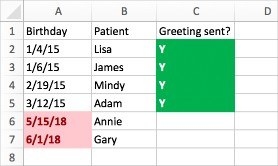
Create the rule around a logical test
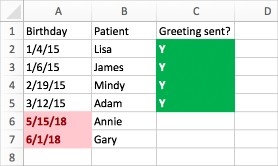
Formula-based conditional formatting can express conditions beyond the built-in choices. The source demonstrates a birthday-tracking sheet with one rule for future dates and another for a sent-greeting marker. In the example, a comparison with TODAY identifies dates later than the current day. This connects the format to a condition that can change automatically instead of requiring someone to recolor the cells each morning.
Select the range and the result deliberately
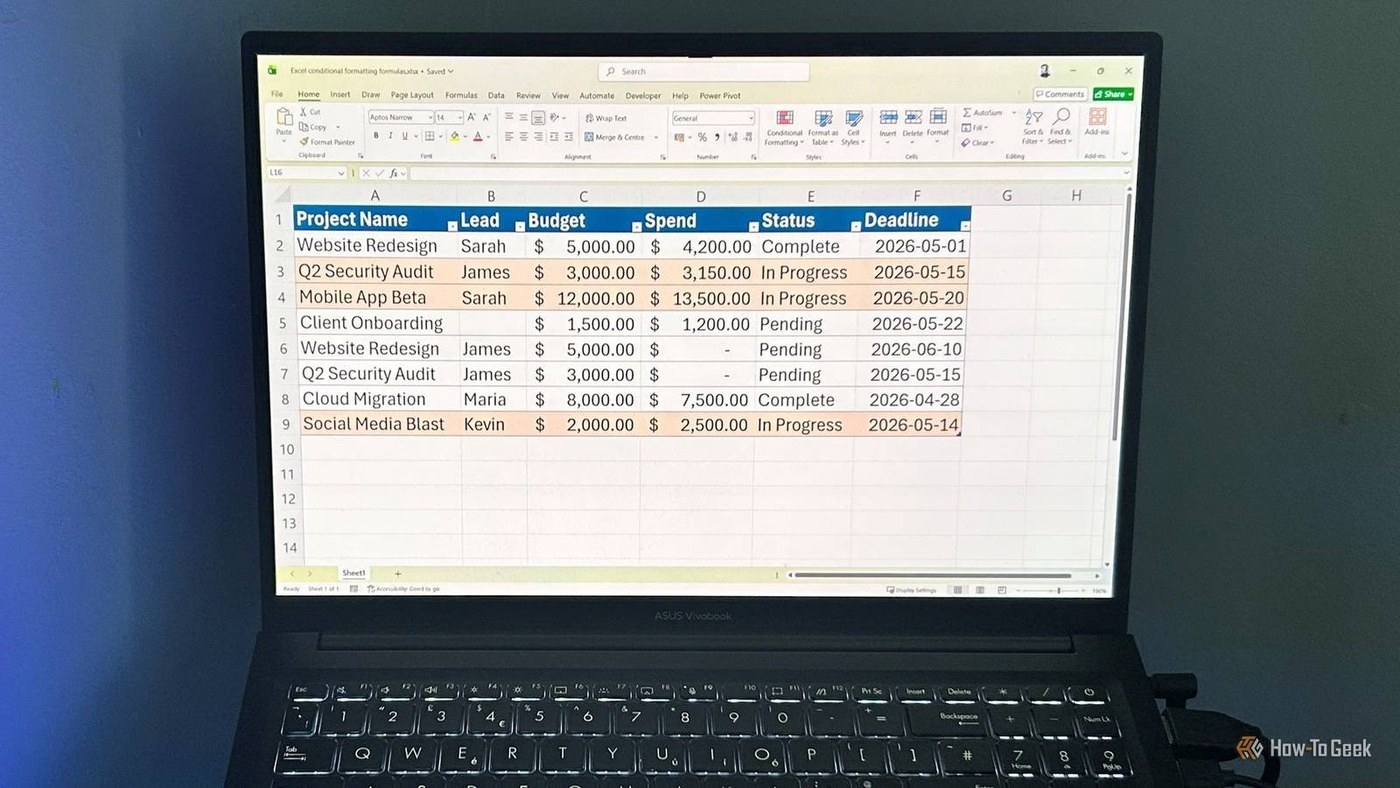
Begin with the intended cells, create a conditional-formatting rule, and choose the option to use a formula. Then enter the test and choose the desired appearance. The source's example treats separate columns with different rules because they answer different questions. Use the same discipline in another workbook: decide what qualifies, which cells should respond, and what the visual result communicates. A custom formula is useful only when those parts agree.





Comments (0)