 SheetWorkflow Guide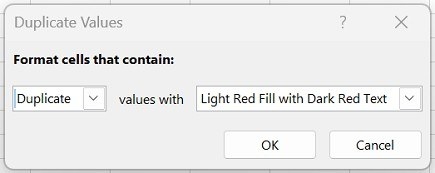
Highlight possible repeats first
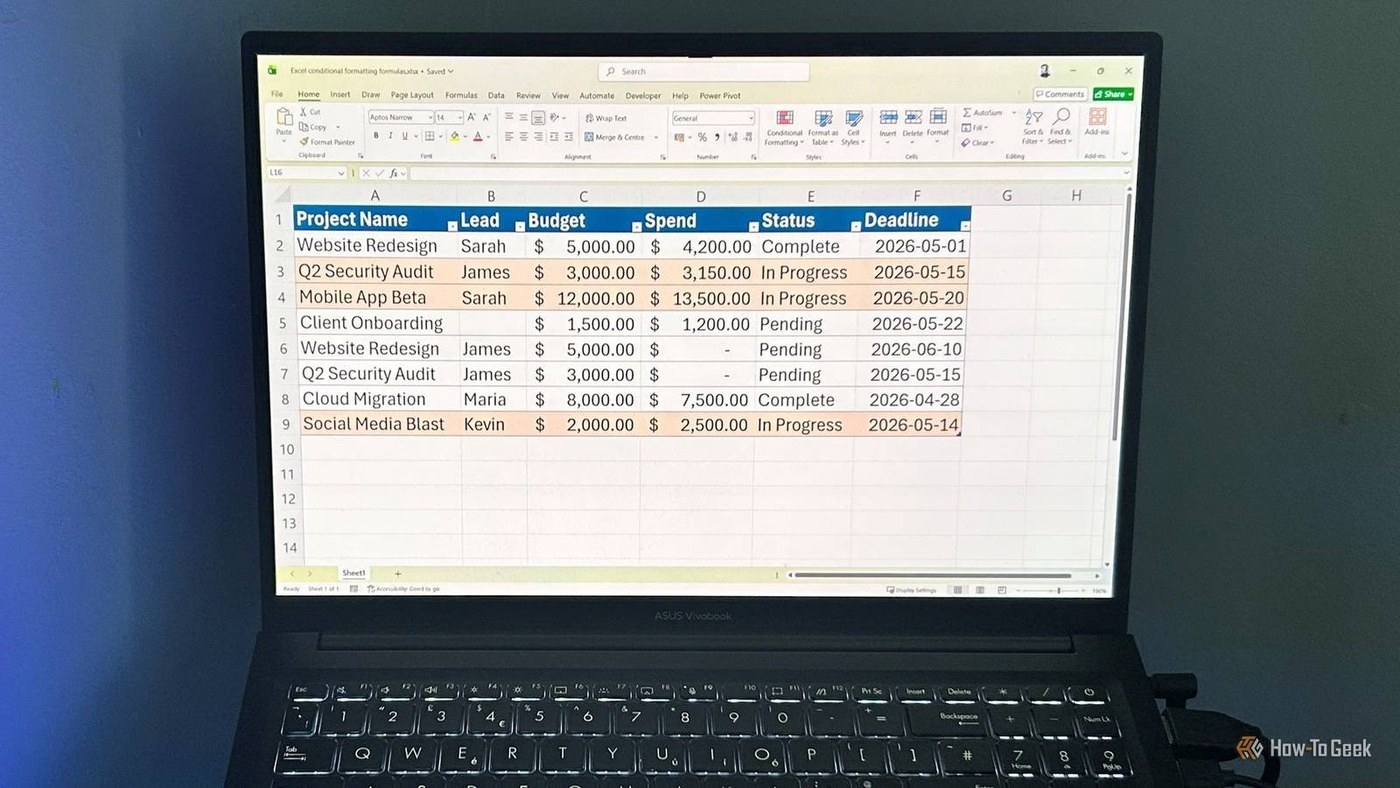
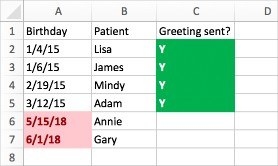
The source recommends conditional formatting as a way to find duplicate values while keeping the data available for review. Select the range and use the Duplicate Values rule under Highlight Cells Rules, then choose an appearance that makes the matches visible. Duplicate information is not always unwanted, so a highlighted result is an opportunity to inspect the records rather than automatic evidence that every repeated value should disappear.
Choose deletion columns with care
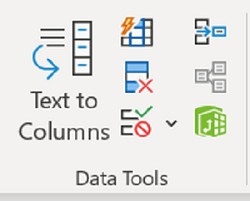
Remove Duplicates permanently deletes matching data, making a backup or separate copy worthwhile before using it. Select the intended range and choose which columns define the duplicate comparison. A match in one field is not the same as a complete repeated row. Check the resulting definition against the records that need to be preserved. This keeps a cleanup step from removing valid information that happened to share a value with another entry.




Comments (0)