 SheetWorkflow Guide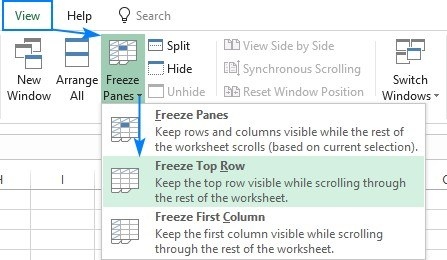
Choose between the top row and a larger area
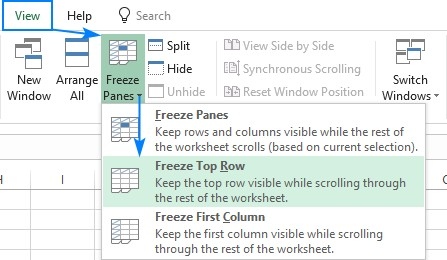
Freeze Panes keeps selected header or identifier areas visible while the rest of the worksheet scrolls. The source distinguishes Freeze Top Row from freezing several rows. For the simplest case, use View, Freeze Panes, Freeze Top Row; a darker horizontal line marks the boundary. This is useful when a long table's labels would otherwise disappear as soon as someone moves farther down the records.
Use the selection to define a wider boundary
Keeping several rows or columns visible requires considering the position at which the sheet should stop moving. The article covers rows, columns, and combined areas rather than treating every worksheet as a one-row header. Choose the command that fits the actual table and verify the result by scrolling in the relevant direction. Freezing is a navigation aid, so its boundary should make the sheet easier to read without occupying unnecessary screen space.




Comments (0)