 SheetWorkflow Guide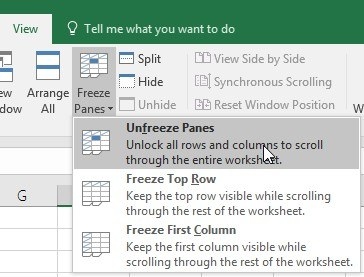
Let the selection define what remains visible
Freeze Panes fixes the rows above and columns to the left of the selected cell while the remaining worksheet scrolls. The source gives a simple example: selecting the third column before applying Freeze Panes keeps the first two columns in view. For both row and column labels, choose the cell below the required rows and to the right of the required columns. The boundary follows that position.
Undo the setting when the layout changes
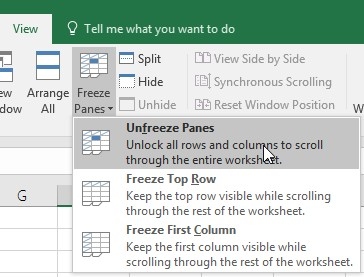
Use View, Freeze Panes, Unfreeze Panes to remove the fixed area. If the result is not what was intended, unfreeze and select the appropriate boundary before trying again. The source also distinguishes freezing from splitting the worksheet into separate viewing areas. Choose the feature according to the navigation problem. Freezing preserves context during scrolling; it does not protect cell contents from editing or replace a clearer table structure.




Comments (0)