 SheetWorkflow Guide
Build the expression in a clear order
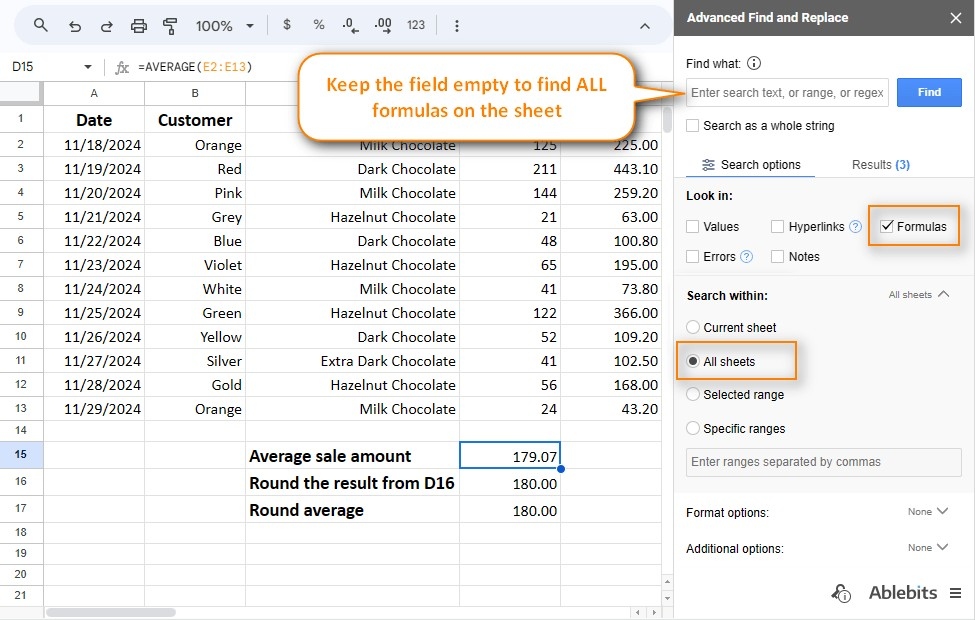
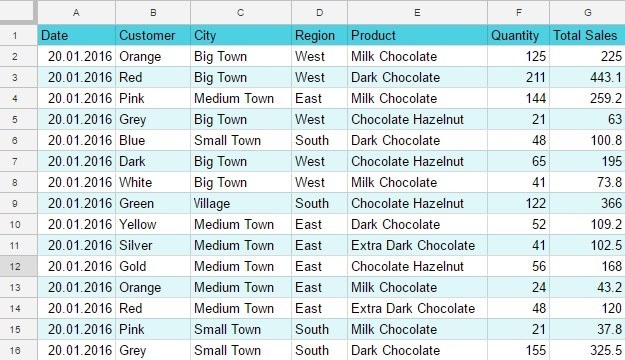
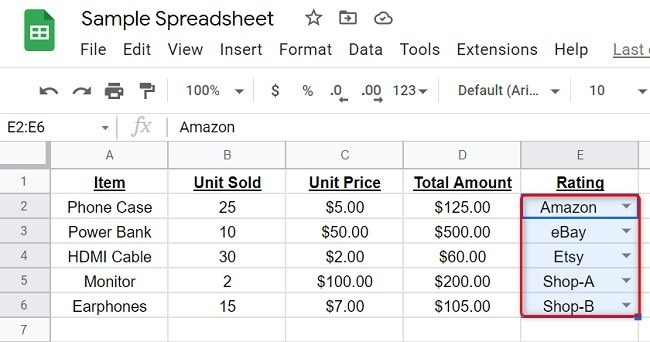
In Google Sheets, select the cell where the answer belongs, type an equals sign, and add the function name. The source uses SUM as a simple example, with a range such as E2:E13 providing the values to add. The application offers function suggestions and information about the required arguments while the formula is entered. Pressing Enter calculates the result once the expression is complete.
Use existing cells as the inputs
References and ranges connect a formula to the data already present in the spreadsheet. This makes the relationship between the calculation and its inputs easier to maintain than entering the same numbers separately. Learn a few functions, such as SUM, AVERAGE, and IF, alongside the reference syntax they require. The aim is to understand what each part contributes, so editing or extending the calculation becomes a deliberate operation rather than a guessing exercise.




Comments (0)