 SheetWorkflow Guide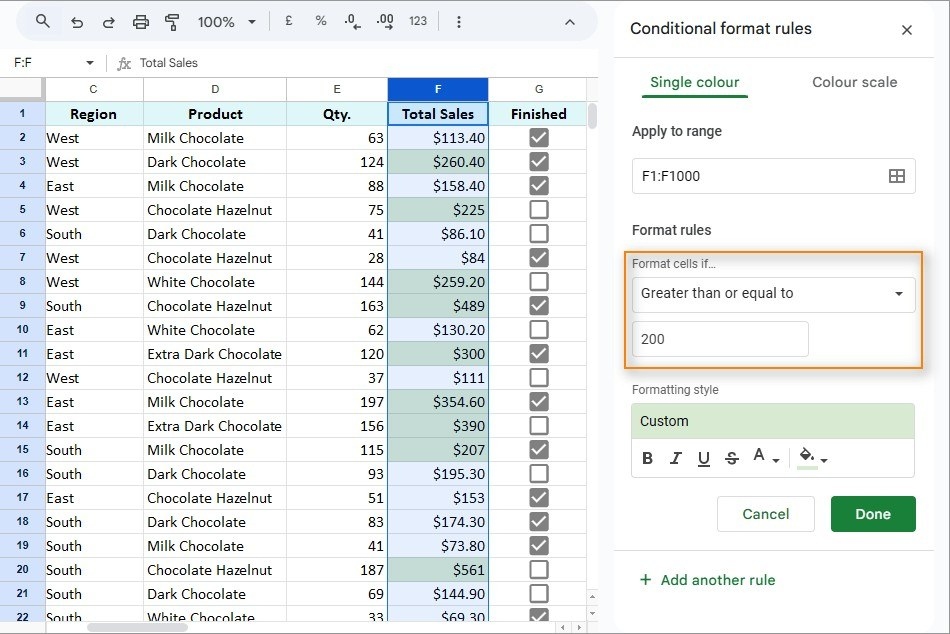
Set a rule instead of coloring cells repeatedly
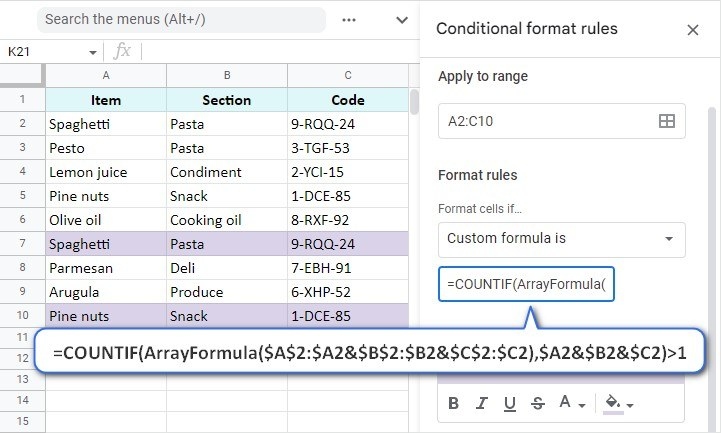
Conditional formatting updates the appearance of cells according to rules, making changing information easier to notice without repeated manual edits. The source covers conditions based on numbers, text, dates, and formulas. Begin by selecting the cells and opening Format, Conditional formatting. This opens the rule panel, where the range, condition, and resulting appearance can be specified as parts of the same instruction.
Connect the visual treatment to a useful question
A rule should explain something meaningful, such as a deadline or a value that needs attention. Review the range carefully so the intended cells receive the formatting. Basic conditions are suitable for straightforward comparisons, while custom formulas support more specific relationships. The benefit comes from linking appearance to the current data, not merely adding color. When the relevant values change, the rule can update the emphasis with them.






Comments (0)