 SheetWorkflow Guide
Limit the operation to the intended area
Google Sheets includes a Find and replace dialog accessible through Ctrl+H. Enter the text to locate and the replacement, then choose whether to work across the file, the current sheet, or a particular range. The source explains that this can handle recurring unwanted characters without creating a separate formula column. Selecting the right scope is important when the same character has different meanings in different parts of the spreadsheet.
Review the search options before replacing everything
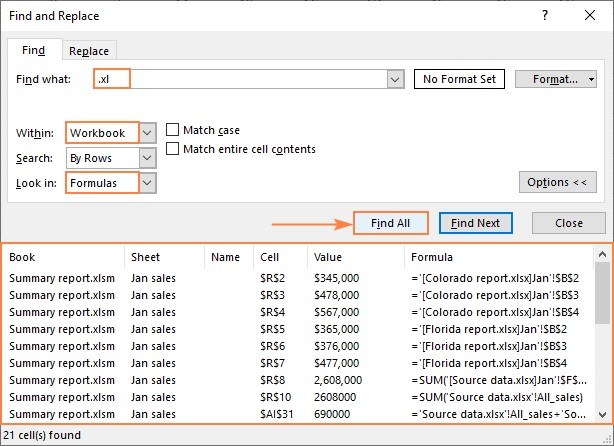
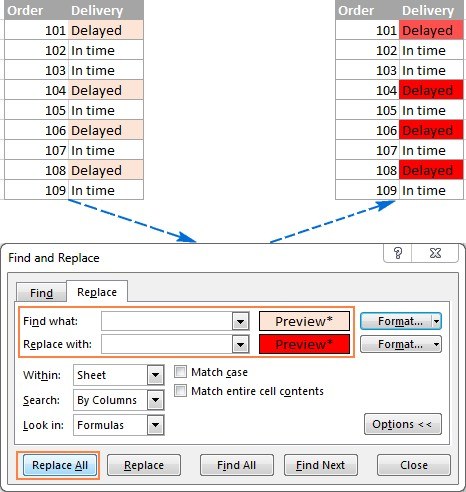
The dialog offers choices involving case, whole cells, formulas, links, and regular expressions. Those options change what a search matches, so they should be part of the plan rather than left unchecked. Replace individual occurrences while establishing that the pattern is correct; use a broader replacement only when the intended matches are clear. A small cleanup can otherwise alter valid content elsewhere in the workbook along with the unwanted text.




Comments (0)