 SheetWorkflow Guide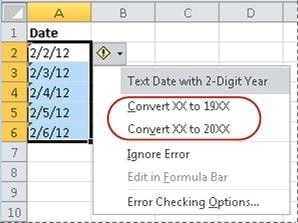
Look for signs of an imported text value
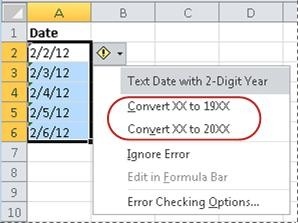
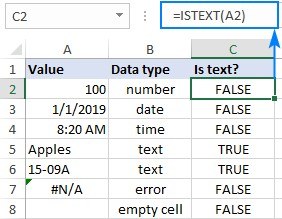
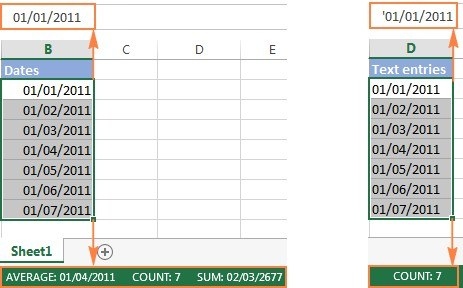
Dates may arrive as text when copied from another source or entered into cells that were already formatted as text. The source describes left alignment and, in some cases, an error indicator for text dates containing two-digit years. These clues can help explain why values that look like dates do not sort or calculate as expected. Confirm what the cells contain before concentrating only on their display format.
Use the appropriate conversion route
When enabled and applicable, Excel's error-checking controls can convert the flagged text dates. DATEVALUE provides another route for many recognized text-date strings. Check the original format and the intended interpretation before applying a method to an entire column. Test ambiguous entries as well as obvious ones. A proper conversion should produce date values that behave correctly in the workbook, not simply replace one date-looking string with another.


Comments (0)