 SheetWorkflow Guide
Make room for the separate fields
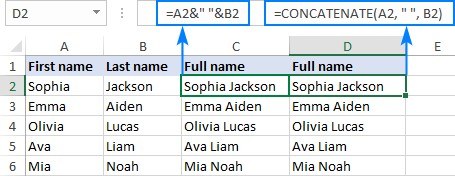
Text to Columns can separate combined information, such as names, without manually editing every cell. The source first checks the columns beside the original data and inserts a new column where existing information would otherwise be displaced. That preparation matters because a successful split can still damage the worksheet if its output lands on values that need to be retained. Decide where the pieces should go before opening the wizard.
Choose the delimiter that really separates the content
After selecting the range, use Data, Text to Columns and choose a delimited arrangement when characters such as spaces, commas, or slashes define the parts. Inspect the preview rather than assuming every space has the same meaning. Names and descriptions may contain additional separators. The useful outcome is a set of fields that can be sorted or analyzed reliably while preserving the information already stored beside the source column.





Comments (0)