 SheetWorkflow Guide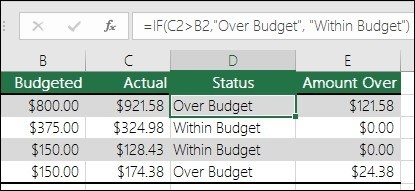
Write the condition before the result labels
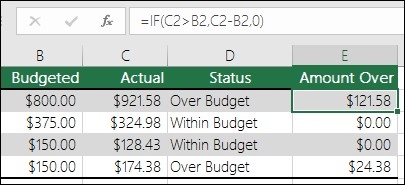
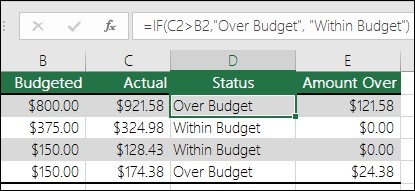
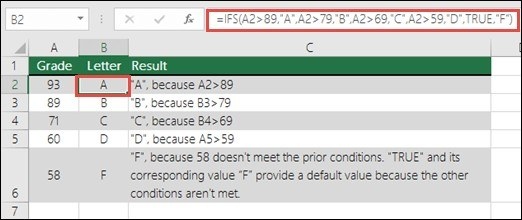
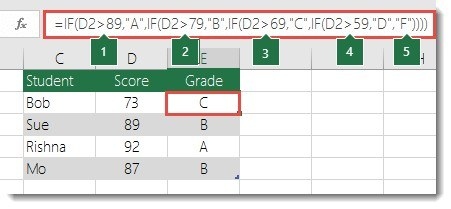
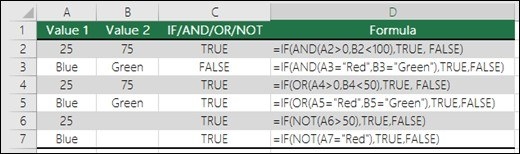
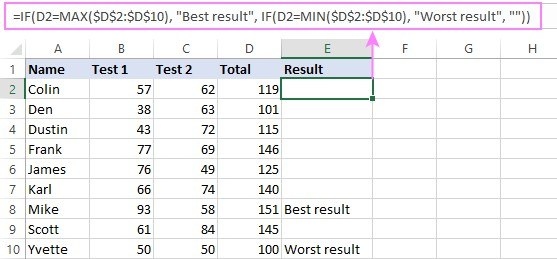
IF evaluates a logical test and returns one result when it is true and another when it is false. The source illustrates comparisons involving both text and numeric values. A budgeting example can compare two amounts and return a status label, while another expression may return a calculation rather than plain text. The important first step is to state clearly which condition separates the two outcomes.
Check both sides of the decision
A formula can appear correct when tested only on a qualifying record. Also examine a case where the condition is false and consider how blanks or unexpected values should behave. Keep the returned values consistent with the purpose of the column. IF is useful because it makes a decision explicit inside the spreadsheet, so its labels, calculations, and condition should remain understandable to someone who did not create the workbook.





Comments (0)